
In the previous post, we converted an Arduino® App into a self-contained Compose App and showed how it can be managed and updated over-the-air (OTA) across a device fleet through FoundriesFactory™ and fioup.
As more embedded applications rely on ML inference, keeping their models updated efficiently and reliably becomes increasingly important.
In production deployments, ML models typically evolve faster than the surrounding application code. Improving detection accuracy, adapting to new environments, or fixing false positives may require updating only the ML model while leaving the rest of the application unchanged.
Managing these updates across fleets of devices introduces several operational challenges:
- models need to be versioned and reproducible,
- updates must be distributed OTA,
- devices may operate in environments with limited or unreliable connectivity,
- and model rollouts should integrate with existing fleet-management workflows.
FoundriesFactory and fioup address these challenges by providing a workflow for versioning, distributing, and deploying ML models across device fleets, which we walk through step by step in this blog post.
As we illustrated in the previous post, a Compose App consists of two types of transferable artifacts:
- Container images — providing the runtime environment for application services.
- App bundle artifacts — carrying the
docker-compose.ymlfile and complementary Compose project files.
The key idea is to package ML models as Compose App bundle artifacts rather than embedding them into container images.
Why Package ML Models as Compose App Artifacts?
By packaging ML models as part of a Compose App, they become managed OTA artifacts rather than device-local files.
This provides several advantages:
- reproducible model deployment across devices,
- version tracking through Git and FoundriesFactory,
- OTA rollout using the same workflow as application updates,
- rollback support,
- integrity verification,
- and consistent model/application compatibility.
Most importantly, it allows ML models to evolve independently from the base operating system image and from unrelated application components.
In practice, this means that updating a model becomes operationally identical to updating any other Compose App asset.
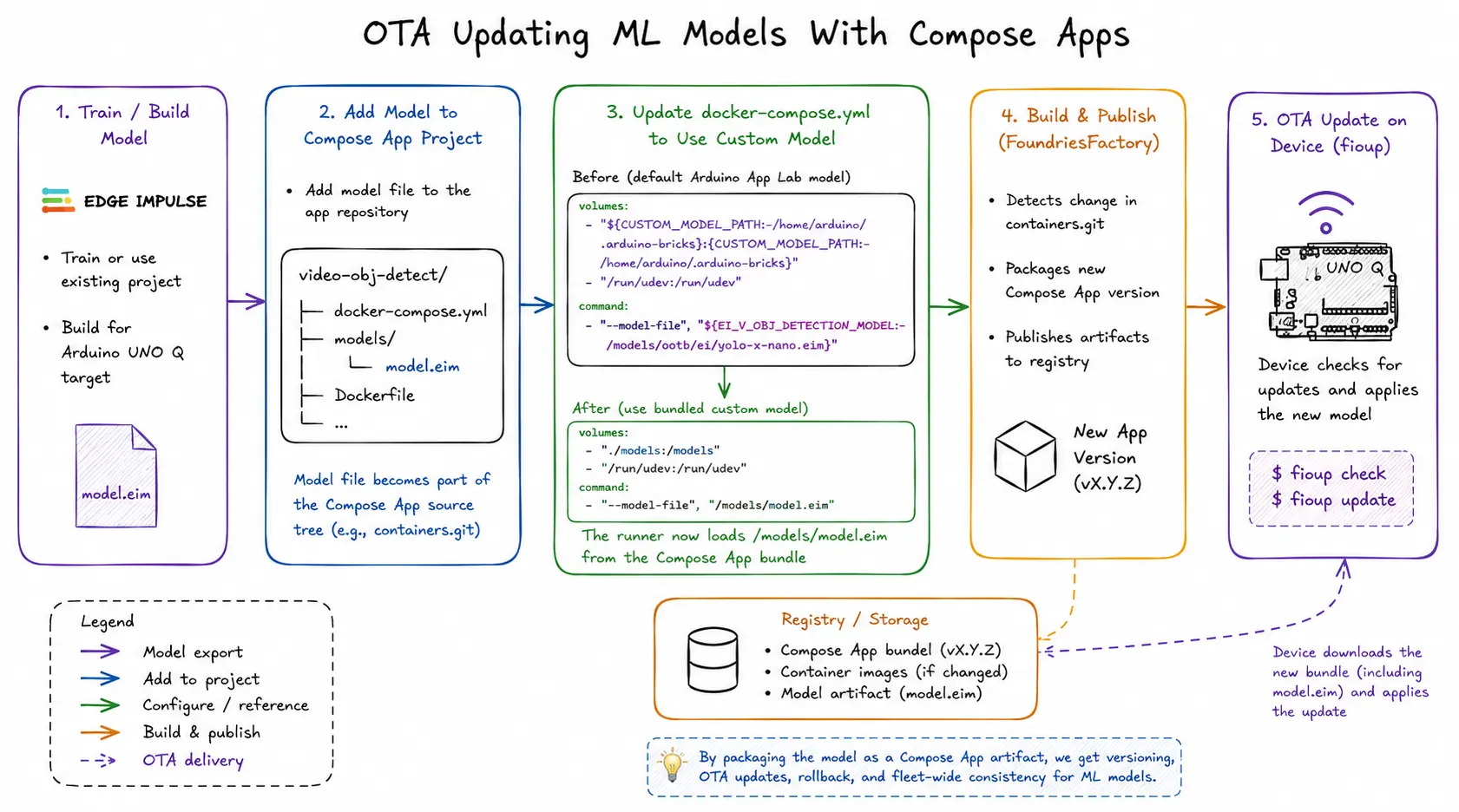
Figure: End-to-end workflow for packaging, publishing, and OTA updating ML models using Compose Apps, FoundriesFactory, and fioup.
Updating the Arduino App Model in Edge Impulse Studio
In the previous blog post, we used the Detect Objects on Camera Arduino Example App. In this post, we update the model used by that app.
The details of retraining models in Edge Impulse Studio are outside the scope of this post. If you want to go through the full training workflow for Arduino Apps on UNO Q, see the official guide on running Edge Impulse Studio integrated with Arduino App Lab.
Rather than retraining a model from scratch, we use a publicly available model already tailored for the video_object_detection app brick. This keeps the focus on OTA packaging and deployment rather than ML training itself.
To use this model on your UNO Q, follow these steps:
- Connect Arduino App Lab to your Edge Impulse account by pressing the Train new AI model button on the right side of the AI models tab in the Video Object Detection configuration page.
- Clone the hand gesture project into your Edge Impulse Studio workspace.
- Open the Deployment subsection under Impulse Design in the left-side menu.
- Select Arduino UNO Q as the deployment target and click Build.
More details on Arduino App Lab integration with Edge Impulse and model deployment workflows can be found in the official Arduino blog post.
After the model is built for the Arduino UNO Q target, it appears in App Lab under the list of AI models for the Video Object Detection brick, allowing you to verify it locally on your UNO Q device.
Once you are satisfied with the model, it is time to deploy it to a device fleet.
Adding the Model to the Compose App
Copying the Model Into the Compose App Project
First, download the built model artifact and add it to the Compose App project.
To download the built model, click the corresponding build link v7 (Arduino UNO Q) displayed on the right side of the Deployment view in Edge Impulse Studio. The generated .eim model file will be downloaded to your host machine.
Alternatively, you can copy the model directly from your UNO Q device. The custom model should appear under:
/home/arduino/.arduino-bricks/models/custom-ei/ei-model-<EI-proj-ID>-*
For example:
/home/arduino/.arduino-bricks/models/custom-ei/ei-model-1005688-1/model.eim
To add the model to a Compose App, copy it into the containers.git repository used by FoundriesFactory. Also make sure the model file is executable (chmod +x) since the Edge Impulse model runner service requires it.
In this example, we place the model in a dedicated models/ directory inside the app project:
cd video-obj-detect
mkdir models
scp unoq:/home/arduino/.arduino-bricks/models/custom-ei/ei-model-1005688-1/model.eim models/
chmod +x models/model.eim
At this point, the model becomes part of the Compose App source tree alongside the existing Compose definition.
Updating the Compose App Definition
Next, update docker-compose.yml so the video_object_detection service uses the new model explicitly.
The original Compose definition mounts the default Arduino model directory from the device filesystem and uses the built-in default model:
volumes:
  - "${CUSTOM_MODEL_PATH:-/home/arduino/.arduino-bricks}:${CUSTOM_MODEL_PATH:-/home/arduino/.arduino-bricks}"
  - "/run/udev:/run/udev"

command:
  [
    "--model-file", "${EI_V_OBJ_DETECTION_MODEL:-/models/ootb/ei/yolo-x-nano.eim}",
  ]
To use the custom model packaged inside the Compose App, replace these entries with a bind mount to the local models/ directory and point the runner directly to model.eim:
volumes:
  - "./models:/models"
  - "/run/udev:/run/udev"

command:
  [
    "--model-file", "/models/model.eim",
  ]
Also, update .composeappignores to include the model directory as part of the app bundle:
cat .composeappignores
*
!docker-compose.yml
!models
The overall change to the video object detection example is shown in this commit.
After these changes, the app directory in containers.git should look like:
.
├── app
│   ├── app.yaml
│   ├── assets
│   ├── python
│   └── README.md
├── .composeappignores
├── docker-compose.yml
├── Dockerfile
├── install.sh
├── LICENSE
├── models
│   └── model.eim
└── README.md
With this change, the model becomes part of the Compose App bundle itself rather than a device-local artifact.
Updating the model now only requires publishing a new Compose App version through the standard FoundriesFactory OTA workflow.
Publishing and Rolling Out the Update
Once the updated model and Compose definition are committed and pushed to containers.git, FoundriesFactory automatically:
- packages the updated Compose App,
- publishes the new App version and its artifacts,
- creates a new OTA target referencing the updated model.
Devices can then discover and apply the update using fioup:
fioup check
fioup update
Alternatively, fioup can run in daemon mode and automatically apply updates as they become available.
At this point, the updated ML model is managed like any other OTA-delivered Compose App artifact.
Conclusion
In this post, we showed how the model used by an Arduino App on UNO Q can be updated as part of a Compose App workflow and delivered OTA through FoundriesFactory.
By treating ML models as versioned Compose App artifacts, the same operational workflows already used for application delivery can also be applied to Edge AI workloads:
- OTA rollout,
- staged deployments,
- rollback,
- reproducibility,
- and fleet-wide consistency.
By separating ML models from container runtime images, Compose Apps make Edge AI deployments easier to update, reproduce, and manage operationally across large device fleets.